Duo vs Google Authenticator vs Microsoft Authenticator
Affiliate disclosure: This article contains affiliate links. If you click a link and make a purchase, we may earn a commission at no extra cost to you. Our editorial recommendations are never influenced by commissions — read our full disclosure policy.
Duo Mobile, Google Authenticator and Microsoft Authenticator all generate the same kind of six-digit sign-in codes, so for a personal account any of the three will work. The real differences are elsewhere. Duo Mobile is Cisco's app for organisations that have put Duo in front of their logins, and it is the one you must use when your employer or university says so. Microsoft Authenticator is the right choice for Microsoft 365, Outlook and work or school accounts, because it adds number-matched push approvals and, for work accounts, passkeys. Google Authenticator is the simplest of the three for everything else, and the only one that can sync codes through your Google Account. Most people end up with the app their organisation requires plus one personal app — and that is fine.
Everything below comes from each vendor's own documentation, checked on 7 November 2026. We have not run a lab test of the three apps; where a claim needs a source, it is linked.
The three apps at a glance
| Duo Mobile | Google Authenticator | Microsoft Authenticator | |
|---|---|---|---|
| Made for | Organisations using Cisco Duo | Anyone with a 2FA code to store | Microsoft accounts and Entra ID work/school accounts |
| Six-digit codes for other sites | Yes — "Add" then "Use QR code" | Yes | Yes |
| Push approvals | Duo Push for Duo-protected logins; Verified Duo Push adds a code check | No | Yes, for Microsoft accounts, with number matching |
| Passkeys | Through Duo's platform (FIDO2 keys, Touch ID, Windows Hello) | No | Yes, for Entra ID work/school accounts (Android 14+, iOS 17+) |
| Backup | Duo Restore: iCloud on iPhone, Google backup on Android; Instant Restore for Duo accounts only if your admin enables it | Optional sync to your Google Account | iCloud on iPhone; personal Microsoft account on Android (moving to Google One from January 2027) |
| Move between iPhone and Android with a backup | No | Yes, with sync — or export and import a QR code | No |
| Price | Free app | Free | Free |
First question: who chose the app?
For many readers this comparison is not a free choice. If your employer, school or bank sends you a "Secured by Duo" prompt, the login is protected by Cisco Duo and your organisation's Duo administrator decides which methods you may use — usually Duo Push in Duo Mobile, a passcode, a phone call or a security key. Our Duo Security review explains what that platform is and why its prompt is legitimate. Likewise, if your organisation uses Microsoft Entra ID (formerly Azure AD), your IT team may require Microsoft Authenticator for its push and passkey features.
So the practical question is usually narrower: "I already have Duo (or Microsoft Authenticator) for work — which app should hold my personal accounts?" The answer is any of them, as long as you set up its backup properly. The sections below explain the trade-offs.
Duo Mobile vs Google Authenticator
These two overlap only in one job: generating codes for third-party accounts. Duo's own guide shows how to add an Instagram, Facebook or Snapchat code in Duo Mobile: tap Add, then Use QR code, and scan the code the service shows; if you cannot scan, most services also give a secret key you can type in. The code "expires in 30 seconds", the same rhythm as Google Authenticator (Duo guide: third-party accounts).
Where they differ:
- Push. Duo Mobile does push approvals for logins protected by Duo; Google Authenticator has no push at all. For your Google Account itself, Google uses its own prompts rather than the Authenticator app.
- Backup. Google Authenticator can save codes in your Google Account and sync them to every device you sign in on — or you can choose "Use without an account" and keep codes only on the phone (Google Account Help). Duo Mobile backs up through Duo Restore, which on Android needs Google backups switched on (Samsung Cloud backup "will not work") and asks for a recovery password of 10 to 128 characters to restore third-party accounts (Duo Restore guide).
- Switching platforms. Duo states plainly that its backups "can not be restored across platforms". Google Authenticator moves between iPhone and Android with sync, or with its export QR code.
Duo Mobile vs Microsoft Authenticator
This is the comparison IT teams make, and both apps offer the same defence against the most common push attack. In push fatigue, an attacker who already has a password sends approval request after approval request until the user taps "approve" to make it stop. Microsoft Authenticator answers with number matching: the login screen shows a number you must type into the app. Duo's equivalent is Verified Duo Push, which Cisco's own security guide says provides "fatigue resistance". The same guide is blunt about the default: "Standard Duo Push does not protect against phishing proxy attacks" (Duo authentication methods security guide).
Neither ordinary push is phishing-resistant. Cisco reserves that label for platform authenticators (Touch ID, Face ID, Windows Hello), FIDO2 security keys and Duo Mobile push with Bluetooth proximity verification. Microsoft's route to phishing resistance is passkeys stored in Microsoft Authenticator: for Entra ID work or school accounts, an administrator can enable device-bound passkeys in the app, which needs Android 14 or later or iOS 17 or later (Microsoft Learn: passkeys in Authenticator).
Is Duo better than Microsoft Authenticator? Not as an app — they are close equivalents for push and codes. Duo's platform adds things an app cannot: device health checks before access and single sign-on on its paid tiers. Microsoft Authenticator is the natural choice wherever Microsoft 365 and Entra ID are already the identity system. For an organisation that has neither, the decision is really "Duo or Entra ID", not which phone app to install.
Google Authenticator vs Microsoft Authenticator
For personal accounts these two are the most common pair, and they suit different people:
- Microsoft Authenticator gives passwordless sign-in to your personal Microsoft account (approve a notification instead of typing a password) and works as a standard code generator for any other site. Its backup is platform-locked: Microsoft says accounts "backed up using an iOS device cannot be restored on an Android device", and on Android the backup moves from your Microsoft account to Google One from January 2027 (Microsoft Support: back up account credentials). It no longer autofills passwords — our Microsoft Authenticator review covers that change.
- Google Authenticator is codes only, but its sync follows your Google Account across iPhone and Android, and Google says it "encrypts Authenticator codes both in transit and at rest". The trade-off is that your Google Account now guards every code, so protect that account with a passkey or security key. More in our Google Authenticator review.
Push approvals vs six-digit codes: which is safer?
All three apps' six-digit codes share one weakness: a convincing fake login page can ask for the code and pass it on within its 30-second life. Push approvals with number matching or Verified Duo Push stop the "approve to make it stop" attack, but not a well-built phishing proxy. What does stop phishing is a credential bound to the real website — a passkey or a FIDO2 security key — because it will not answer a lookalike domain. NIST's digital identity guideline, SP 800-63B-4, puts it in one line: "Out-of-band authentication is not phishing-resistant" (NIST SP 800-63B, section 3.1.3) — and push approval is a form of out-of-band authentication.
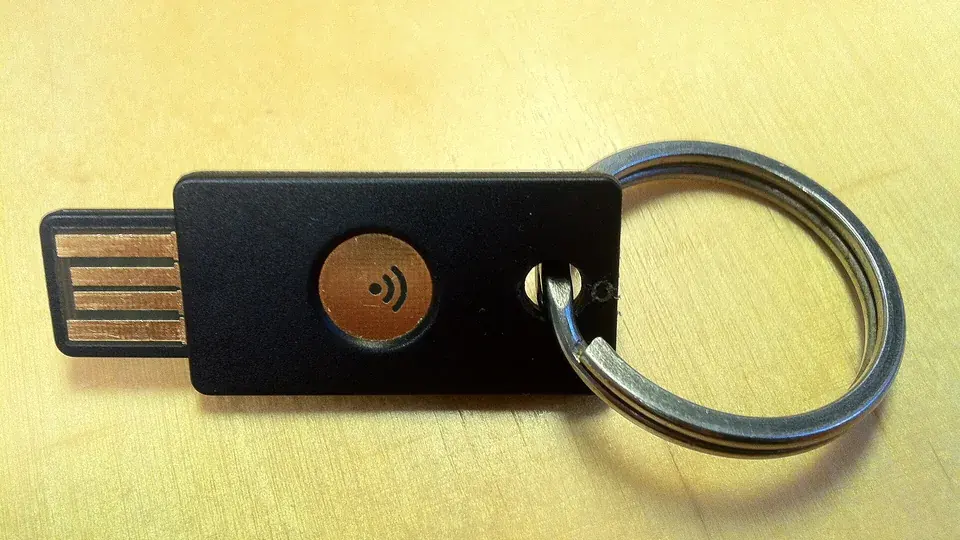
So the ranking for your most important accounts (email, password manager, bank) is: security key or passkey first, number-matched push second, app codes third, SMS last. Duo's guide lists SMS risks as "SIM swapping, number porting, and SS7-based interception". Our passkeys vs 2FA guide explains the switch, and the YubiKey review covers the hardware option.
Backup and new phones: where people get locked out
The app matters less than whether its backup is on. Before you change phones:
1. Google Authenticator: sign in to the same Google Account on the new phone and check every code appears — or use Menu → Transfer codes → Export codes on the old phone and Import codes on the new one. 2. Microsoft Authenticator: on iPhone, iCloud Drive, iCloud Keychain and iCloud Backup must all be on; on Android, back up to your personal Microsoft account (Google One from January 2027). Restoring only works onto the same kind of phone. 3. Duo Mobile: make sure Duo Restore is enabled and you know your recovery password. Duo accounts from work restore instantly only if your organisation's administrator has enabled Instant Restore; otherwise your IT help desk issues a new activation.
Keep the old phone until you have signed in to your important accounts from the new one. The full sequence is in moving 2FA to a new phone, and 2FA recovery codes explained covers the fallback when a backup fails.
An alternative: keep codes in your password manager
Some people prefer one place for passwords and codes. Proton Pass Plus includes a "built-in 2FA authenticator" and cost $2.99 a month billed annually ($35.88 a year) on Proton's pricing page on 7 November 2026; the free plan does not include it. The trade-off is that one account then holds both factors, so give the password manager itself a second factor that lives outside it — ideally a security key. We weigh that choice in 2FA codes in your password manager.
Which one should you use?
- Your organisation requires Duo: use Duo Mobile for that account, turn on Verified Duo Push if your administrator offers it, and set up Duo Restore.
- You use Microsoft 365 or a work/school Microsoft account: use Microsoft Authenticator; ask IT about passkeys in the app.
- Personal accounts, and you might switch between iPhone and Android: Google Authenticator with sync, protected by a strong Google sign-in.
- Your email, password manager and bank: add a passkey or a security key on top of whichever app you choose.
Frequently asked questions
Is Duo better than Google Authenticator?
For codes on personal accounts, no — both generate the same 30-second codes, and Google Authenticator is easier to back up and move between iPhone and Android. Duo Mobile is better only where you need Duo Push, which is when an organisation protects its logins with Cisco Duo.
Is Duo better than Microsoft Authenticator?
As apps they are close equivalents: both do push approvals with a code check (Verified Duo Push and number matching) and six-digit codes. Choose by the platform your organisation uses — Duo for Duo-protected logins, Microsoft Authenticator for Microsoft and Entra ID accounts.
Can I use Google Authenticator instead of Duo?
For your own personal accounts, yes. For a login your employer or school protects with Duo, the allowed methods are set by your organisation's Duo administrator, so ask your IT help desk before replacing Duo Mobile.
Can Duo Mobile store my Google or Facebook codes?
Yes. Duo's guide shows adding third-party accounts by scanning their QR code, and names Instagram, Facebook and Snapchat as examples. To keep them when you change phones, enable Duo Restore and set a recovery password.
Which authenticator app is the most secure?
The apps' codes are equally strong; the difference is in push protection and backup. For phishing resistance, add a passkey or FIDO2 security key to your most important accounts — no six-digit code or ordinary push approval can match that.
Covered in this guide

Sources
- Duo guide: third-party accounts (guide.duo.com)
- Google Account Help (support.google.com)
- Duo Restore guide (guide.duo.com)
- Duo authentication methods security guide (duo.com)
- Microsoft Learn: passkeys in Authenticator (learn.microsoft.com)
- Microsoft Support: back up account credentials (support.microsoft.com)
- NIST SP 800-63B, section 3.1.3 (pages.nist.gov)
Written by Thomas Lovas Lokoy, Founder & Editor — researched and drafted with AI assistance from published sources; edited and published by NorwegianSpark SA · Editorial policy · Disclosure · Last updated: 7 November 2026